


One reason you may want to temporarily change the data folder is to try Power Clock using the sample data. Any sub-folder named SAMPLE will be treated as demo data. When you select a folder named SAMPLE as your data folder, the menu option Recreate Demo Data is enabled on the File menu. When you click 'Recreate Demo Data', all data in the Sample folder will be erased and new data using current dates is generated. You should NEVER use the sample folder as your regular data location for daily operations because it can be erased at anytime if someone selects 'Recreate Demo Data'.
Setting the data folder
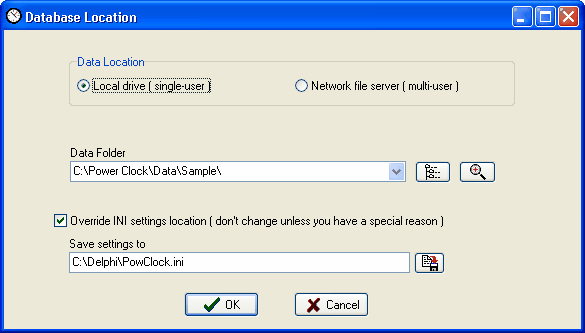
Data Location
Select 'Local Drive' as the data location.
Data Folder
Enter the folder name on your hard disk where you want to store your data files. Click
 to browse your hard drive for the folder.
Look for data button

Sometimes you may forget where your data is stored and need to find lost data on your hard drive. A common reason is you get a new computer and copy the data from your old computer to the new one but you forgot the exact folder name where the data is stored. Click the Look for Data button to search all your hard drives for your Power Clock data.
Search for files screen
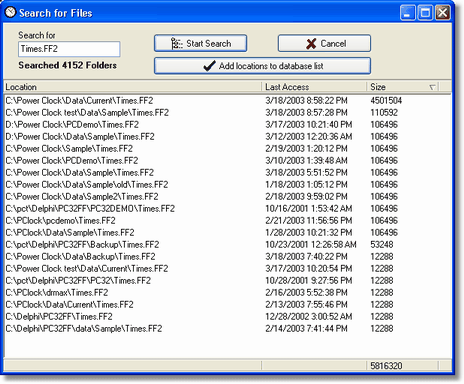
"Look for data" opens a file search screen like the one pictured above. By default the 'Search for' field is filled in with the file name 'Times.FF2'. This is the file that Power Clock uses to store clock in and out times. You may replace this file name with any name you choose but we recommend you search for 'Times.FF2' because that is the main data file used by Power Clock.
Click 'Start Search' to begin the search. As the search progresses, you will see a list of all data files found. The files are sorted by size. You can sort the files by date by clicking the 'Last Access' column header. Usually, the file with the largest size will be the data you need to use.
After the search finishes, click 'Add locations to database list' to add the found folders to your list of data locations. After the locations have been added to the data locations list, you can select one of them to use as your database.
Note: The Power Clock Server has it's own 'Look for files' function. For multi-user mode you should use the search function in the server program.
Tip: You can also use this function to search for lost backup files. Change the 'Search for' file name to '*.ZIP' before beginning the search.