


Keyboard shortcut: [Ctrl+N]
Data Locations screen
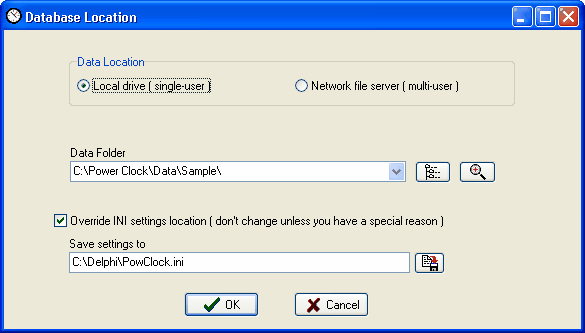
Single-user mode vs Multi-user mode
Power Clock can run in either single-user or multi-user mode. Single-user mode means you are running Power Clock on a single computer exclusively. You can use single-user mode on either a single standalone computer or on a computer that is part of a network. If the computer is part of a network, only one computer at a time can run Power Clock in single-user mode.
Multi-user mode means you have a local area network (LAN) or wide area network (WAN) and want Power Clock available to multiple users on your network. Multi-user mode requires that you run the Power Clock Server somewhere on your network and that you have TCP/IP protocol installed in Windows. Multi-user mode is also used when you want to access Power Clock data on a remote server via the internet.
Override INI settings location
This option should activated by advanced users. There should be no reason to ever change it for most installations.
By default Power Clock stores the data location settings in a text file named powclock.ini in the same folder as the Power Clock executable file, PClock32.exe. If you choose to override this setting then the new ini file location will be stored in the Windows registry of the current computer.
single-user mode setup
multi-user setup