


Security Profiles control employee access to menu commands, reports, and file modification. Security profiles allow you to set all security options in one place for a group of employees. There are four built-in profiles, ADMIN, DEFAULT, LOGGEDOUT, and MANAGER.
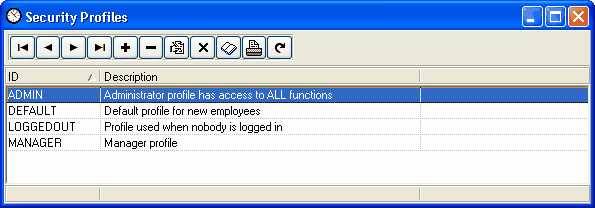
All employees must be assigned a security profile. A security profile is assigned to an employee by editing their employee record. The security profile is entered on page one of the employee record.
Power Clock allows an unlimited number of security profiles. You'll find it easier to start if you use and modify the built-in security profiles. Later you may want to add a few other custom profiles. For the ultimate in flexibility you can create a custom profile for each employee.
See Built-in Profiles
Security Profiles Screen
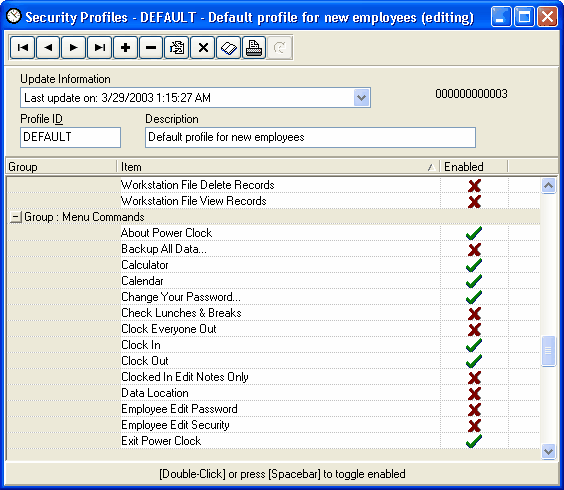
Editing security profiles is easy. After you select the profile and enter editing mode, double-click or press the spacebar to enable or disable an option.
Security profile settings are grouped into three categories; Built-in Reports, Custom Reports, File Access, Menu Commands.
See also
File and Report Security
Menu Commands
Built-in Profiles