


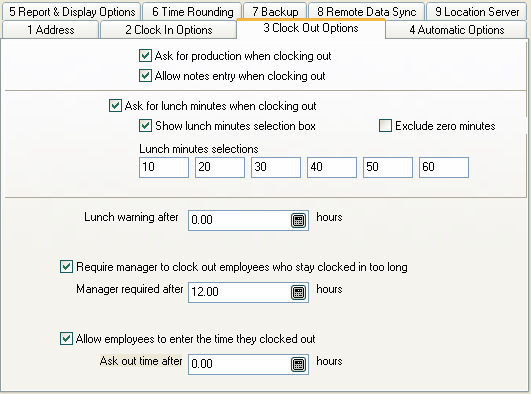
Ask for production when clocking out
If this box is checked, Power Clock will ask employees for their production when they clock out. This is useful if you need to track things like parts assembled, lines typed, cases worked, etc. Employee production is summarized on all time reports. If this option is disabled, production data will not show on reports.
Allow Notes entry when clocking out
If this box is checked, Power Clock will allow entry of notes when clocking out. The notes stay with the time record and are shown on reports. You may also want to enable the option to ask for notes when clocking in.
Ask for lunch minutes when clocking out
If this box is checked, Power Clock will allow entry of lunch minutes when clocking out. The employee may enter any number of minutes. If lunch minutes are entered then the time record is split according to the number of minutes entered and the lunch time is recorded in a separate time record. When hours are shown on reports the lunch hours are grouped separately or may be excluded completely.
Show lunch minutes selection box
If this box is checked, Power Clock will show a lunch minutes selection list rather than allowing employees to enter any number of minutes. The number of lunch minutes shown in the list is configured in the following five lunch minutes selections fields.
Exclude zero
Check this box if you want to exclude the '0 Minutes' selection from the lunch minutes selection box.
Lunch minutes selections 1 through 5
These five numbers control the number of minutes that appear on the lunch minutes selection list when an employee clocks out.
Lunch warning after xxx hours
Enter a number of hours here if you want employees to get a warning for not taking a lunch. They are given the warning when they clock out and have worked a shift longer than the specified hours.
Require manager to clock out employees who stay clocked in too long
Check this box to require a manager to clock out employees who stay clocked in longer then the number of hours specified in the next field.
Manager required after xxx hours
This is the number of hours after which a manager must be logged in before the employee can clock out. When an employee tries to clock out and they have exceeded the number of hours entered here, a manager must be logged in to clock them out. The manager must have "Manager Clock out" enabled in their security profile.
This option can also be activated and deactivated on an employee by employee basis. See the Employee file for details.
Allow employees to enter the time they clocked out
Check this box to allow employees to enter the time they clocked out when they stay clocked in longer than the hours specified in the next field. This is useful if you have employees who forget to clock out and you trust them to enter the correct clock out time.
Ask out time after xxx hours
Enter the number of hours after which the employee is asked what time they clocked out.