


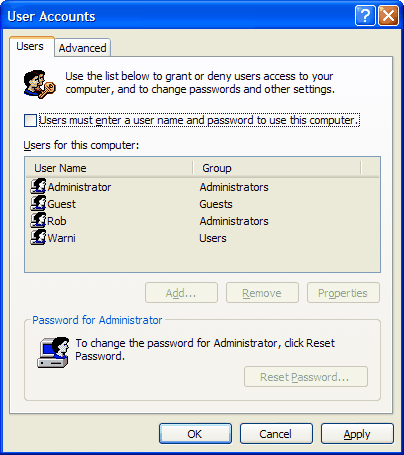
At a Windows command prompt, enter "control userpasswords2". This will launch the User Accounts application. On the Users tab, clear the check box for "Users must enter a user name and password to use this computer" and click OK. (If your computer is part of a domain, this box does not appear). The Automatically Log On dialog box appears. Type your user name and password, and click OK.
If you didn't know to look for it, you'd never find this handy dialog, which is available in both XP Professional and XP Home. And it's effective—two readers who found TweakUI didn't work for them were able to bypass the welcome screen using this technique. This dialog also lets you define a particular account as a Standard user, a status in between the Limited user and Administrator user categories available in the Control Panel's normal User Accounts applet.
Of course, once you set up the machine for automatic login anybody can login to your account. Only configure automatic login when the computer itself is physically secure, for example, in a locked office.
Once you have enabled automatic Windows login, you can then place a shortcut to the Power Clock client PCLOCK32.EXE into the start menu's Startup group and it will start automatically with the computer.